Sprite Forge - Studio
A downloadable tool
SpriteForge Studio for Godot
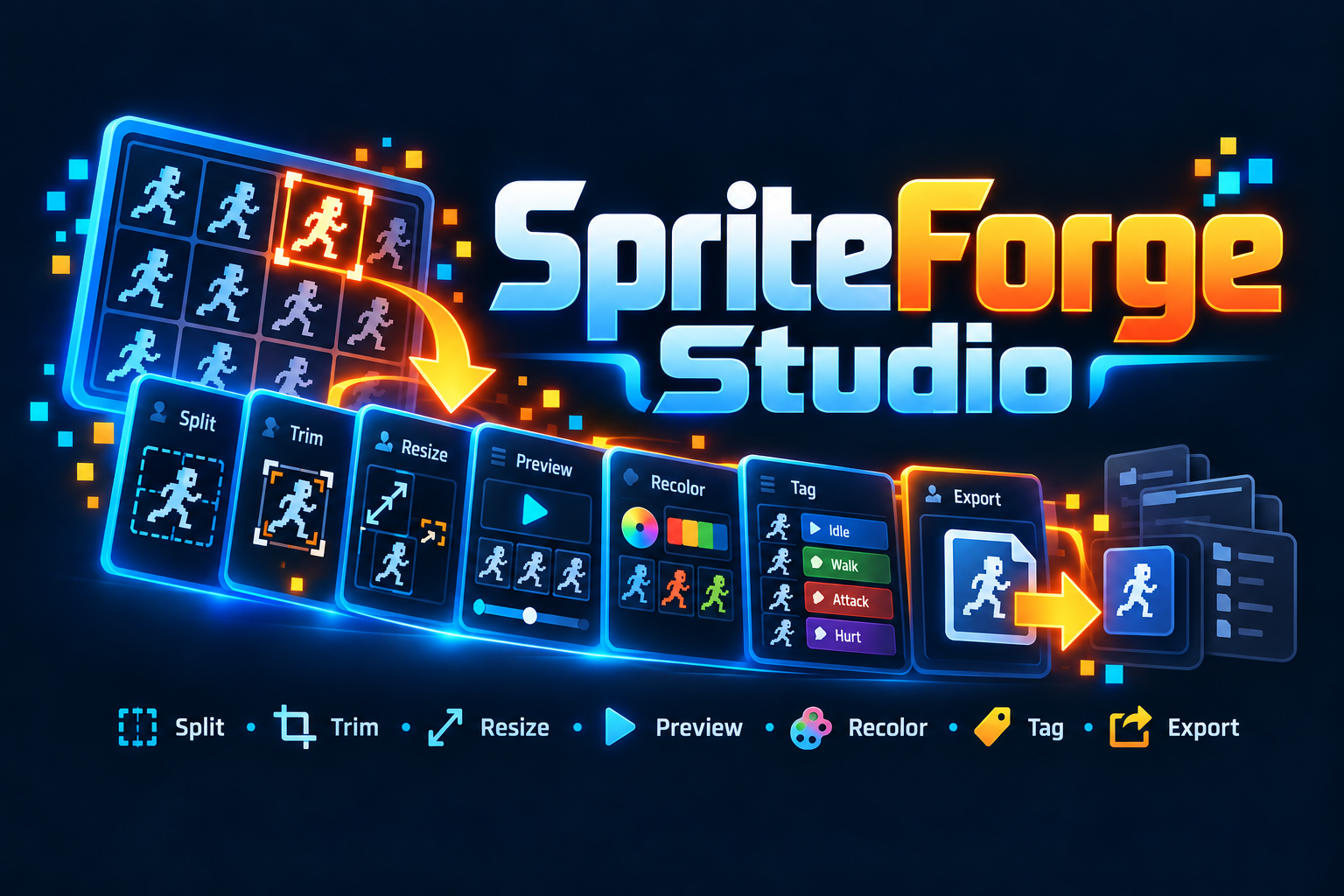
Stop slicing sprite sheets by hand. SpriteForge Studio is a Godot 4 editor plugin that takes a PNG sprite sheet, finds the frames, trims the empty space without making your animations jitter, tags them as Idle, Walk, Attack, Hurt and Death, recolors them, and writes a SpriteFrames resource you can drop straight onto an AnimatedSprite2D.
It works with clean grid sheets, loosely packed sheets, and the messy ones too: solid or fake-checkerboard backgrounds, captions, panel borders, and sprites whose shadows or glows touch.
What it does
Finds your frames automatically
- Auto mode detects every sprite by its outline, even on sheets with no grid, and merges detached pieces such as weapons, particles and shadows into their sprite.
- Grid mode slices by frame size or by columns × rows, with offset and spacing.
- Each row becomes a named animation, or group by columns, or put everything in one animation.
Cleans up messy sheets
- Removes solid backgrounds and fake transparency checkerboards, with a soft edge that keeps glows smooth.
- Ignores titles, captions, frame numbers, divider lines and panel borders.
- Splits sprites that are joined by shadows, tails or glow effects.
Trims padding without the jitter
- The default Crop to animation bounds removes empty space while keeping every frame the same size and in the same place. No wobbling characters.
- Trimmed frames stay aligned using
AtlasTexturemargins, so there are no offset scripts to write.
Lets you fix anything by hand
- Select, delete, merge, draw a box, or split a box into N equal frames.
- Your edits survive changes to detection settings, and every sheet's settings are remembered, so re-exporting after the art changes is one click.
Tags your animations
- Type the row order once, for example
idle, walk, attack, hurt, death, or pick a preset, and every row gets the right name. - Tags set sensible defaults: idle, walk and run loop; attack, hurt and death play once, each at a fitting speed.
- Sheets with a column per facing direction become
walk_down,walk_left,walk_right,walk_upautomatically.
Recolors in real time
- Hue, saturation and brightness sliders with a live preview.
- Palette swaps: click any of the sheet's main colors and pick a new one. Shading inside the color is kept, so armor, skin or team colors change cleanly.
- Exports use the new colors, and batch export applies each sheet's saved colors.
Previews before you export
- Plays each animation exactly as AnimatedSprite2D will show it, with FPS, loop, ping-pong, onion skin and frame bounds.
Exports what you need
- A SpriteFrames
.treswith every animation named, timed and looped, using frames from your original sheet (no new images), a new tightly packed sheet, or individual PNGs. - Individual PNG frames, named by animation.
- Resizing at any scale, with crisp nearest-neighbor for pixel art (200%, 300%, 400%) or smooth filters for everything else.
Batch export
- Point it at a folder, filter by name, and export dozens of sheets in one go.
- Each result is marked ✓ or ⚠, so you know which sheets deserve a second look.
How it works
- Right-click a PNG in the FileSystem dock → Open in SpriteForge Studio (or drag it onto the SpriteForge Studio tab).
- Check the detected frames and fix any by hand.
- Tag the rows (idle, walk, attack…) and recolor if you like.
- Click Export and assign the
.tresto an AnimatedSprite2D.
What you get
SpriteForge-Studio-Setup-1.0.0.exe: Windows installer. Pick your Godot project folder and it installs and enables the plugin for you.SpriteForge-Studio-1.0.0-addon.zip: the same plugin for manual install on Windows, macOS or Linux.- Full GDScript source and a README.
Requirements
- Godot 4.4 or newer (developed and tested on 4.7).
- Works in the editor only. Nothing is added to your exported game.
Installing
Windows: run the installer, choose the folder that contains your project.godot, then open (or reload) the project. A SpriteForge Studio tab appears next to 2D / 3D / Script.
Any OS: unzip, copy addons/spriteforge into your project, and enable SpriteForge Studio in Project → Project Settings → Plugins.
FAQ
Does it work with pixel art?
Yes. Pick 200/300/400% with the Nearest filter for crisp upscales.
Can I make color variants, like red and blue teams?
Yes. Recolor the sheet, change the file name, and export again. Each export keeps its own colors.
Can I re-export when my artist updates a sheet?
Yes. SpriteForge Studio remembers each sheet's settings, edits and animation names. Reopen the sheet and press Export, and scenes using the .tres update.
What if auto-detection gets a sheet wrong?
Unusual sheets (overlapping effects, icon atlases with text between rows) can need a quick manual fix: draw a box around a row and split it into the right number of frames, or switch to Grid mode.
Will the installer trigger a Windows warning?
The installer isn't code-signed yet, so Windows may show an "unknown publisher" prompt. Click More info → Run anyway, or use the zip instead.
Download
Click download now to get access to the following files: